Showing posts with label Windows XP. Show all posts

October 21, 2011

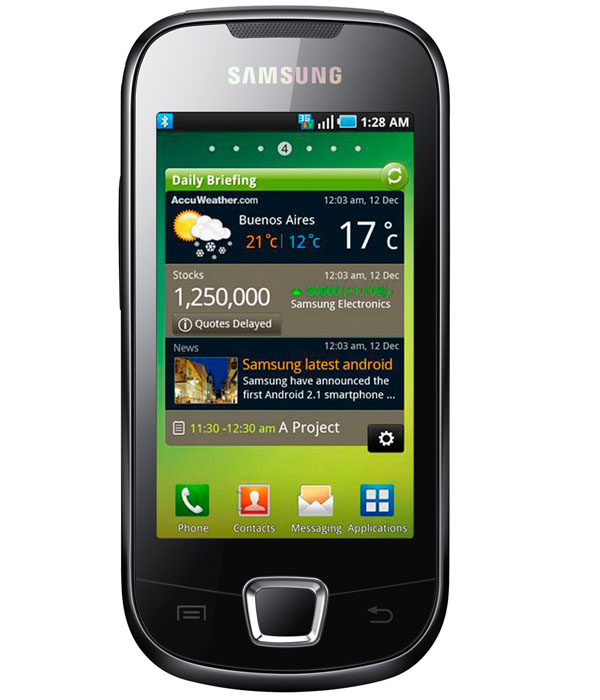
How to install the USB drivers for your Samsung Galaxy 3 (Apollo, I5800, I5801)


If you too were having problems with your Samsung Galaxy 3/Apollo/I5800/I5801 phone not being recognized by Windows, look no further.

1. You will need to download the drivers for another phone called Samsung Galaxy S.

For Windows (XP/Vista/7) x86 (32 bits).
For Windows (XP/Vista/7) x64 (64 bits).

2. Locate the file you downloaded and unzip its contents. Plug in your Galaxy 3 using the USB cable and redirect the driver installer to the folder where you unzipped the contents. If the driver installer doesn't show up, you can go to Control Panel > System > Device Manager then look for the problematic device, right-click, select Update driver...


3. The USB drivers should install correctly and your phone will be recognized by Windows.

How to remove the "AMD VISION" entry from the right-click menu


When you right-click on your desktop or in a folder you will see an AMD VISION Engine Control Center (formerly know as ATI Catalyst) entry in your right-click menu which allows you to have a direct access to the AMD Vision Control Center and fiddle with your graphics card settings. If you find this annoying and don't use that function or you have other means to access it (like from the Start menu) you might want to wish to remove it.

Removing the AMD Vision entry context-menu entry:

1. Open regedit.exe. (Start > Run.. (alternatively Windows + R) > type regedit > press OK)

2. Navigate to:

HKEY_CLASSES_ROOT\Directory\Background\shellex\ContextMenuHandlers\ACE


3. Double-click on the (Default) key and rename the value data to whatever you wish or put a few dashes in front of it to disable it, as shown in the picture:


4. Changes take effect immediately. You can close regedit.exe.

Note: these steps are valid for any version of Windows.

October 27, 2010

Unable to reinstall Battlefield: Bad Company 2

...or any other game for that matter. You just uninstalled your game for one reason or another and now it simply won't reinstall. This happened for me with Bad Company 2:


After inserting the key the installer simply won't pursue the install process and will close without warning. The solution was simple (that is, after I looked around for weeks), in fact you are simply missing some Windows Installer files or Windows Installer is defective.

1. Go to Microsoft's Download Center and search for Windows Installer.
2. Download the newest Windows Installer redistributable for your system (4.5 for XP and Vista).
3. Install.
4. Reboot.

That's it. You now can go back to play BC2.

October 16, 2010

Windows doesn't install new hardware

When installing new hardware or drivers on your Windows XP computer you receive the following error :  "An error occurred during the installation of the device".


Solution 1:

Verify the default device path:

1. Open Run... command (alternatively Windows + R)
2. Type regedit.
3. Browse to HKEY_LOCAL_MACHINE\SOFTWARE\Microsoft\Windows\CurrentVersion.
4. Look for the key named "DevicePath" and verify that its value is correctly set to "%SystemRoot%\inf".
5. If it isn't double-click on it and delete everything under value, write "%SystemRoot%\inf" (without the quotes). Press OK.
6. Reboot for changes to take effect.


Solution 2:

You will need your original Windows XP CD for this solution.

1. Restart your computer in safe mode (F8 when booting).
2. Use the device manager (click Start, right-click My Computer, click Manage, and then click Device Manager) to uninstall any devices that gave you an error.
2. Open up explorer and browse to the "C:\Windows\Driver cache\i386" folder.
3. There, rename the file driver.cab to driver.old.
4. Now insert your Windows XP CD and open up the i386 folder on it.
5. Locate the file named driver.cab and copy/paste or drag it to "C:\Windows\Driver cache\i386".
6. Reboot your computer.

That's it.